Fixed count-driven structure
A fixed template draws the values you enter without asking a generative model to interpret numbers. Review the supplied counts directly and retain a clear relationship between the screening log and the exported figure.
Systematic review reporting
Enter your review’s screening counts, inspect the PRISMA 2020 pathway and download an editable SVG. This template covers new reviews using databases and registers.
This free counting tool runs in your browser. Use documented totals from your review log; it does not search, deduplicate or screen publications for you.
Clear the fictional example before entering your verified counts. You supply the data; this tool checks the supported template’s count relationships.
Template count checks pass. Review your source records and reporting requirements before submission.
%22%2F%3E%3Cpolyline%20points%3D%22337.5%2C281%20337.5%2C325%22%20fill%3D%22none%22%20stroke%3D%22%23475569%22%20stroke-width%3D%221.5%22%20marker-end%3D%22url(%23arrow)%22%2F%3E%3Cpolyline%20points%3D%22505%2C366%20551%2C366%22%20fill%3D%22none%22%20stroke%3D%22%23475569%22%20stroke-width%3D%221.5%22%20marker-end%3D%22url(%23arrow)%22%2F%3E%3Cpolyline%20points%3D%22337.5%2C403%20337.5%2C447%22%20fill%3D%22none%22%20stroke%3D%22%23475569%22%20stroke-width%3D%221.5%22%20marker-end%3D%22url(%23arrow)%22%2F%3E%3Cpolyline%20points%3D%22505%2C488%20551%2C488%22%20fill%3D%22none%22%20stroke%3D%22%23475569%22%20stroke-width%3D%221.5%22%20marker-end%3D%22url(%23arrow)%22%2F%3E%3Cpolyline%20points%3D%22337.5%2C525%20337.5%2C569%22%20fill%3D%22none%22%20stroke%3D%22%23475569%22%20stroke-width%3D%221.5%22%20marker-end%3D%22url(%23arrow)%22%2F%3E%3Cpolyline%20points%3D%22505%2C610%20551%2C610%22%20fill%3D%22none%22%20stroke%3D%22%23475569%22%20stroke-width%3D%221.5%22%20marker-end%3D%22url(%23arrow)%22%2F%3E%3Cpolyline%20points%3D%22337.5%2C647%20337.5%2C796%22%20fill%3D%22none%22%20stroke%3D%22%23475569%22%20stroke-width%3D%221.5%22%20marker-end%3D%22url(%23arrow)%22%2F%3E%3Ctext%20x%3D%2224%22%20y%3D%22162%22%20font-size%3D%2213%22%20fill%3D%22%23475569%22%3EIdentification%3C%2Ftext%3E%3Ctext%20x%3D%2224%22%20y%3D%22347%22%20font-size%3D%2213%22%20fill%3D%22%23475569%22%3EScreening%3C%2Ftext%3E%3Ctext%20x%3D%2224%22%20y%3D%22469%22%20font-size%3D%2213%22%20fill%3D%22%23475569%22%3EReport%20retrieval%3C%2Ftext%3E%3Ctext%20x%3D%2224%22%20y%3D%22591%22%20font-size%3D%2213%22%20fill%3D%22%23475569%22%3EEligibility%3C%2Ftext%3E%3Ctext%20x%3D%2224%22%20y%3D%22818%22%20font-size%3D%2213%22%20fill%3D%22%23475569%22%3EIncluded%3C%2Ftext%3E%3Cg%3E%3Crect%20x%3D%22170%22%20y%3D%22144%22%20width%3D%22335%22%20height%3D%22137%22%20rx%3D%226%22%20fill%3D%22%23ffffff%22%20stroke%3D%22%23334155%22%20stroke-width%3D%221.5%22%2F%3E%3Ctext%20x%3D%22188%22%20y%3D%22172%22%20font-size%3D%2214%22%20fill%3D%22%230f172a%22%3E%3Ctspan%20x%3D%22188%22%20dy%3D%220%22%3ERecords%20identified%3C%2Ftspan%3E%3Ctspan%20x%3D%22188%22%20dy%3D%2221%22%3ERecords%20identified%20from%20databases%3C%2Ftspan%3E%3Ctspan%20x%3D%22188%22%20dy%3D%2221%22%3E(n%20%3D%201000)%3C%2Ftspan%3E%3Ctspan%20x%3D%22188%22%20dy%3D%2221%22%3ERecords%20identified%20from%20registers%3C%2Ftspan%3E%3Ctspan%20x%3D%22188%22%20dy%3D%2221%22%3E(n%20%3D%20100)%3C%2Ftspan%3E%3C%2Ftext%3E%3C%2Fg%3E%3Cg%3E%3Crect%20x%3D%22555%22%20y%3D%22144%22%20width%3D%22365%22%20height%3D%22116%22%20rx%3D%226%22%20fill%3D%22%23ffffff%22%20stroke%3D%22%23334155%22%20stroke-width%3D%221.5%22%2F%3E%3Ctext%20x%3D%22573%22%20y%3D%22172%22%20font-size%3D%2214%22%20fill%3D%22%230f172a%22%3E%3Ctspan%20x%3D%22573%22%20dy%3D%220%22%3ERecords%20removed%20before%20screening%3C%2Ftspan%3E%3Ctspan%20x%3D%22573%22%20dy%3D%2221%22%3EDuplicate%20records%20removed%20(n%20%3D%20150)%3C%2Ftspan%3E%3Ctspan%20x%3D%22573%22%20dy%3D%2221%22%3ERecords%20removed%20by%20automation%20(n%20%3D%200)%3C%2Ftspan%3E%3Ctspan%20x%3D%22573%22%20dy%3D%2221%22%3ERecords%20removed%20for%20other%20reasons%20(n%20%3D%2010)%3C%2Ftspan%3E%3C%2Ftext%3E%3C%2Fg%3E%3Cg%3E%3Crect%20x%3D%22170%22%20y%3D%22329%22%20width%3D%22335%22%20height%3D%2274%22%20rx%3D%226%22%20fill%3D%22%23ffffff%22%20stroke%3D%22%23334155%22%20stroke-width%3D%221.5%22%2F%3E%3Ctext%20x%3D%22188%22%20y%3D%22357%22%20font-size%3D%2214%22%20fill%3D%22%230f172a%22%3E%3Ctspan%20x%3D%22188%22%20dy%3D%220%22%3ERecords%20screened%20(n%20%3D%20940)%3C%2Ftspan%3E%3C%2Ftext%3E%3C%2Fg%3E%3Cg%3E%3Crect%20x%3D%22555%22%20y%3D%22329%22%20width%3D%22365%22%20height%3D%2274%22%20rx%3D%226%22%20fill%3D%22%23ffffff%22%20stroke%3D%22%23334155%22%20stroke-width%3D%221.5%22%2F%3E%3Ctext%20x%3D%22573%22%20y%3D%22357%22%20font-size%3D%2214%22%20fill%3D%22%230f172a%22%3E%3Ctspan%20x%3D%22573%22%20dy%3D%220%22%3ERecords%20excluded%20at%20screening%20(n%20%3D%20800)%3C%2Ftspan%3E%3C%2Ftext%3E%3C%2Fg%3E%3Cg%3E%3Crect%20x%3D%22170%22%20y%3D%22451%22%20width%3D%22335%22%20height%3D%2274%22%20rx%3D%226%22%20fill%3D%22%23ffffff%22%20stroke%3D%22%23334155%22%20stroke-width%3D%221.5%22%2F%3E%3Ctext%20x%3D%22188%22%20y%3D%22479%22%20font-size%3D%2214%22%20fill%3D%22%230f172a%22%3E%3Ctspan%20x%3D%22188%22%20dy%3D%220%22%3EReports%20sought%20for%20retrieval%20(n%20%3D%20140)%3C%2Ftspan%3E%3C%2Ftext%3E%3C%2Fg%3E%3Cg%3E%3Crect%20x%3D%22555%22%20y%3D%22451%22%20width%3D%22365%22%20height%3D%2274%22%20rx%3D%226%22%20fill%3D%22%23ffffff%22%20stroke%3D%22%23334155%22%20stroke-width%3D%221.5%22%2F%3E%3Ctext%20x%3D%22573%22%20y%3D%22479%22%20font-size%3D%2214%22%20fill%3D%22%230f172a%22%3E%3Ctspan%20x%3D%22573%22%20dy%3D%220%22%3EReports%20not%20retrieved%20(n%20%3D%2010)%3C%2Ftspan%3E%3C%2Ftext%3E%3C%2Fg%3E%3Cg%3E%3Crect%20x%3D%22170%22%20y%3D%22573%22%20width%3D%22335%22%20height%3D%2274%22%20rx%3D%226%22%20fill%3D%22%23ffffff%22%20stroke%3D%22%23334155%22%20stroke-width%3D%221.5%22%2F%3E%3Ctext%20x%3D%22188%22%20y%3D%22601%22%20font-size%3D%2214%22%20fill%3D%22%230f172a%22%3E%3Ctspan%20x%3D%22188%22%20dy%3D%220%22%3EReports%20assessed%20for%20eligibility%3C%2Ftspan%3E%3Ctspan%20x%3D%22188%22%20dy%3D%2221%22%3E(n%20%3D%20130)%3C%2Ftspan%3E%3C%2Ftext%3E%3C%2Fg%3E%3Cg%3E%3Crect%20x%3D%22555%22%20y%3D%22573%22%20width%3D%22365%22%20height%3D%22179%22%20rx%3D%226%22%20fill%3D%22%23ffffff%22%20stroke%3D%22%23334155%22%20stroke-width%3D%221.5%22%2F%3E%3Ctext%20x%3D%22573%22%20y%3D%22601%22%20font-size%3D%2214%22%20fill%3D%22%230f172a%22%3E%3Ctspan%20x%3D%22573%22%20dy%3D%220%22%3EReports%20excluded%20after%20assessment%20(n%20%3D%20100)%3C%2Ftspan%3E%3Ctspan%20x%3D%22573%22%20dy%3D%2221%22%3EExample%3A%20population%20outside%20review%20scope%3C%2Ftspan%3E%3Ctspan%20x%3D%22573%22%20dy%3D%2221%22%3E(n%20%3D%2060)%3C%2Ftspan%3E%3Ctspan%20x%3D%22573%22%20dy%3D%2221%22%3EExample%3A%20study%20design%20outside%20review%20scope%3C%2Ftspan%3E%3Ctspan%20x%3D%22573%22%20dy%3D%2221%22%3E(n%20%3D%2030)%3C%2Ftspan%3E%3Ctspan%20x%3D%22573%22%20dy%3D%2221%22%3EExample%3A%20required%20outcome%20not%20reported%3C%2Ftspan%3E%3Ctspan%20x%3D%22573%22%20dy%3D%2221%22%3E(n%20%3D%2010)%3C%2Ftspan%3E%3C%2Ftext%3E%3C%2Fg%3E%3Cg%3E%3Crect%20x%3D%22170%22%20y%3D%22800%22%20width%3D%22335%22%20height%3D%2274%22%20rx%3D%226%22%20fill%3D%22%23ffffff%22%20stroke%3D%22%23334155%22%20stroke-width%3D%221.5%22%2F%3E%3Ctext%20x%3D%22188%22%20y%3D%22828%22%20font-size%3D%2214%22%20fill%3D%22%230f172a%22%3E%3Ctspan%20x%3D%22188%22%20dy%3D%220%22%3EStudies%20included%20in%20the%20review%20(n%20%3D%2020)%3C%2Ftspan%3E%3Ctspan%20x%3D%22188%22%20dy%3D%2221%22%3EReports%20of%20included%20studies%20(n%20%3D%2030)%3C%2Ftspan%3E%3C%2Ftext%3E%3C%2Fg%3E%3Ctext%20x%3D%2224%22%20y%3D%22924%22%20font-size%3D%2211%22%20fill%3D%22%23475569%22%3E%3Ctspan%20x%3D%2224%22%20dy%3D%220%22%3EAdapted%20from%20PRISMA%202020%20(Page%20et%20al.%2C%202021)%2C%20CC%20BY%204.0.%20Author-supplied%20counts.%3C%2Ftspan%3E%3C%2Ftext%3E%3C%2Fg%3E%3C%2Fsvg%3E)
01
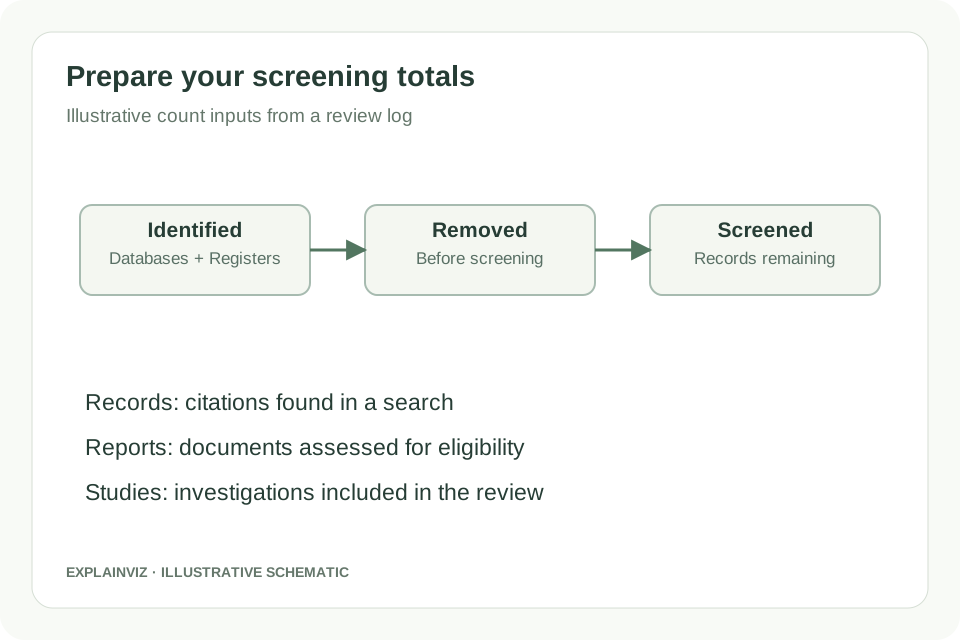
Gather the counts from your search and screening log. Enter database and register records, removals before screening, screening exclusions, reports sought and assessed, exclusion reasons, and included reports and studies. Keep the counting units distinct.
02
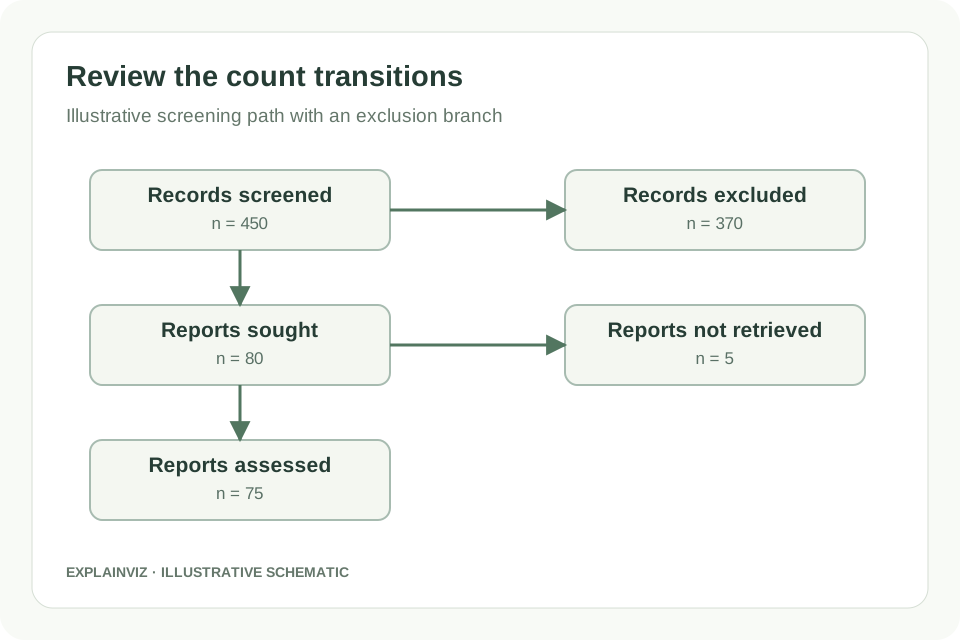
Inspect the preview and resolve any count warnings. Compare each transition with your log, including reports not retrieved and full-text exclusion reasons. Do not change a count solely to make the diagram balance; investigate the underlying discrepancy.
03
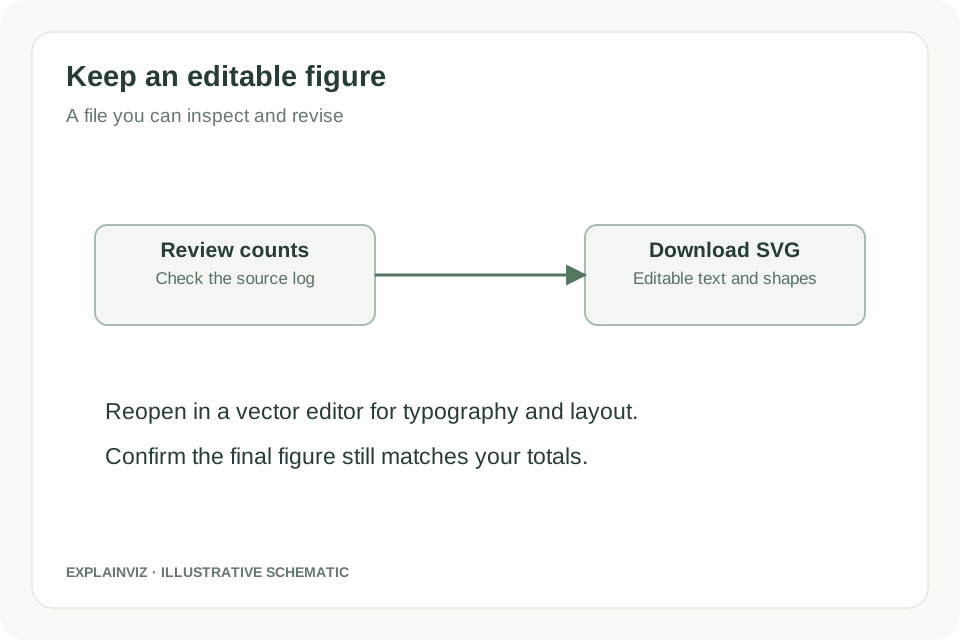
Download the editable vector file once the counts are consistent. Reopen it in a compatible editor if you need typography or layout changes, then compare its final labels and totals with the review report before submission.
A fixed template draws the values you enter without asking a generative model to interpret numbers. Review the supplied counts directly and retain a clear relationship between the screening log and the exported figure.
Transition checks help surface inconsistent arithmetic while you prepare the figure. Treat them as a prompt to review the log; passing a count check cannot establish that a screening decision or search method was appropriate.
Export vector shapes and text for final adjustments in a compatible editor. A separate editable file makes it easier to update the figure when the review team corrects a count or changes a label.
This counting form and its diagram rendering run in your browser. It does not use the account-based AI generation service, and you can prepare and export this supported template without buying generation credits.
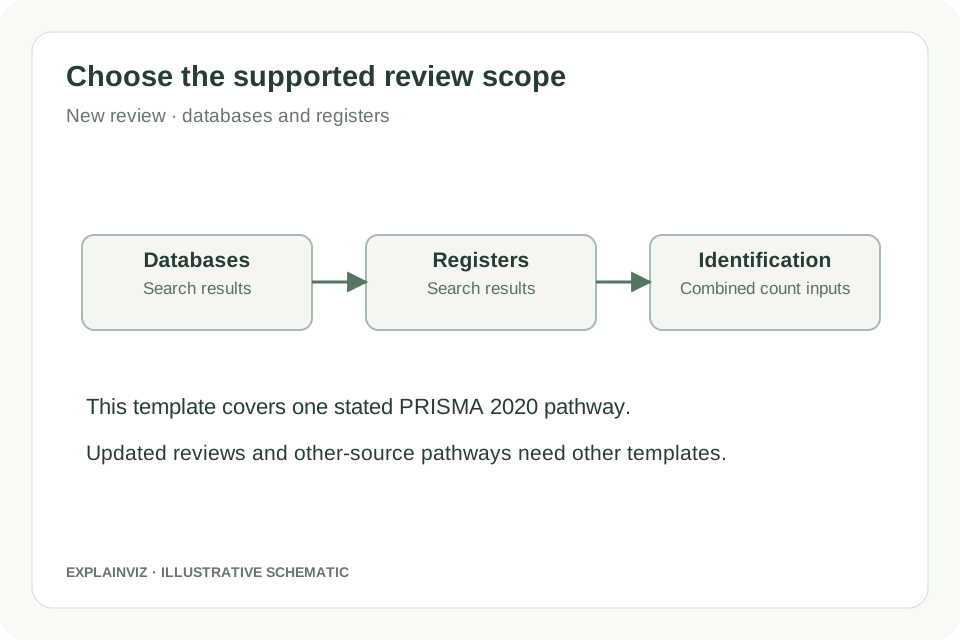
The PRISMA flow diagram describes how evidence moves through review selection. This tool implements the pathway for a new systematic review whose study identification uses databases and registers. Begin by checking that this describes your review. Enter the aggregate database and register totals from your completed review records; the figure should represent the process you actually used, including removals before screening and documents that could not be retrieved.
The official PRISMA site provides separate templates for new and updated reviews, with variants for database/register searching alone and for searching that also uses other sources. This first version does not add an updated-review pathway or a separate branch for websites, citation searching and other sources. Do not force those activities into a database box to fit the layout. Choose the relevant official template when your methods need a pathway outside this tool’s supported scope.
PRISMA 2020 reporting extends beyond the diagram. The figure supports transparent selection reporting, while the manuscript and checklist cover other aspects of the review. Read the official guidance alongside your journal’s instructions, and cite the reporting guideline appropriately in your paper. The original template is attributed through the official source below. Generating an attractive figure here does not certify that the search, appraisal, synthesis or full report meets PRISMA requirements.
Official PRISMA 2020 flow diagram templates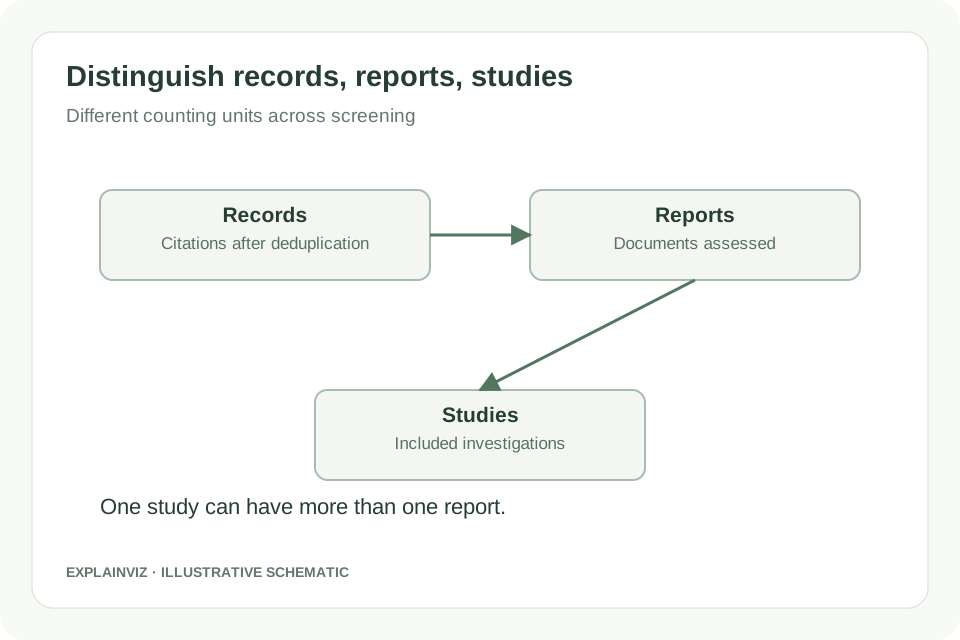
A record is a search citation, a report is a document describing research, and a study is the investigation itself. Those counts can differ. Multiple database results may describe the same report, and one included study may have several reports. Keep those distinctions in your review log and transfer the appropriate unit into each box. Avoid using the number of full-text documents as the study count merely because the values appear close.
An illustrative screening log might begin with 600 identified records, remove 150 duplicates and screen 450 records. If 370 are excluded during screening, 80 reports are sought. If 5 cannot be retrieved, 75 reports are assessed. These fictional values explain the transitions; they are not results of a real review. Check your own path in the same order, and trace an unexpected number back to the stage where its counting unit changed.
At the end of the path, enter included reports and included studies as documented values. A review with 20 included reports may describe fewer than 20 studies, so the generator does not turn a report total into a study total by assumption. Keep an audit trail that links each study to its reports. When co-authors correct that mapping, update the underlying log and regenerate the figure so the exported file and manuscript continue to agree.
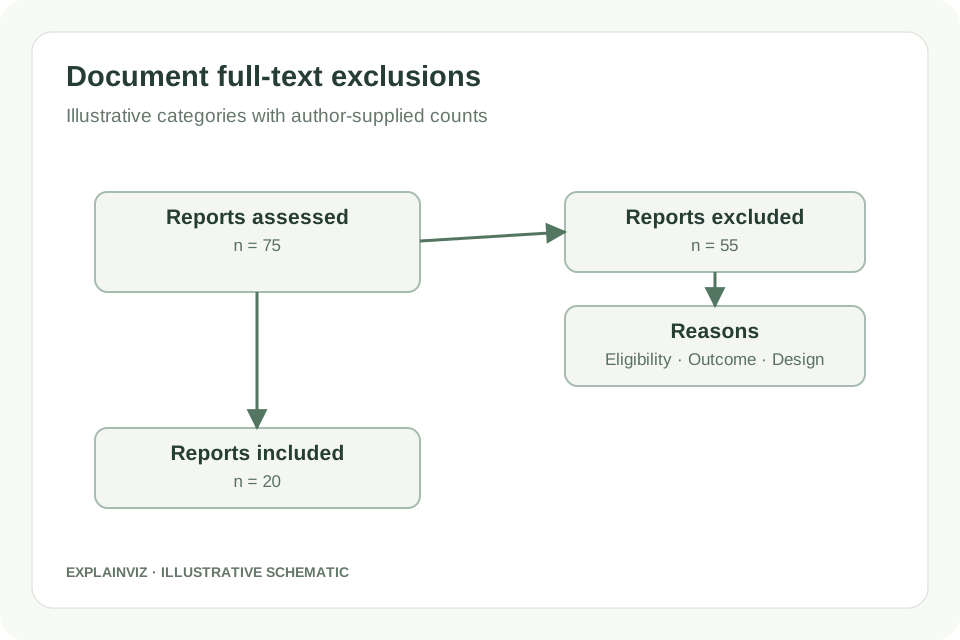
Reports assessed for eligibility need a clear outcome: inclusion or exclusion, with documented reasons for the excluded reports. Write reason labels that describe the criteria used in the review, such as an ineligible study design or a required outcome that was absent. Keep each label consistent with the Methods section. The figure records decisions already made by your review team; it does not judge a paper’s eligibility or decide which reason should apply.
For an illustrative set of 75 assessed reports, 55 exclusions would leave 20 included reports. If you divide the 55 among several displayed reasons, check that the category counts match the documented exclusion total. Use a consistent approach to assigning reasons, and retain the report-level explanation in the review records. If your current log uses overlapping categories, resolve how the figure will represent them rather than quietly altering totals until the warning disappears.
After exporting SVG, review long labels, line wrapping and the relationship between reason boxes and the main pathway. You can adjust the file in a vector editor, but changes to counts should start in the form and screening log so the arithmetic remains reviewable. Keep the final version with your review materials. This tool provides SVG export; it does not create an Excel screening workbook, a manuscript PDF or a complete submission package.
Build a selection figure from the final screening log for a new review using databases and registers. Compare all displayed totals with the Methods and Results before circulating the manuscript.
Share an exported draft with the review team so they can inspect retrieval failures, eligibility exclusions and the report-to-study distinction. Resolve discrepancies in the source log before treating the figure as final.
Prepare a concise evidence-selection diagram for a postgraduate thesis. Match the figure to the actual search and screening procedures rather than adapting the illustrative counts shown on this page.
Regenerate the figure when reviewers identify a reporting discrepancy or a count changes during revision. Preserve the agreed screening log and replace the outdated export wherever it appears in the manuscript.
Check the reporting guidance appropriate to your review, including PRISMA-ScR where relevant. A selection diagram can be useful, but this page supports one PRISMA 2020 pathway and does not implement a complete scoping-review reporting workflow. Do not assume that using this diagram satisfies the reporting extension. Decide whether the selection stages in this fixed template match your actual process, and use the appropriate official resources when the scope or terminology differs.
This version creates the diagram from the values in the current browser session. It does not create an account-based screening project or a saved review database. Keep the underlying counts in your own review records and download the SVG you need. If you close or refresh the page, be prepared to enter the values again. Avoid relying on the figure-building form as the only copy of your selection log.
Vector editors can use different available fonts and text-wrapping behaviour. Open the exported SVG and inspect long exclusion reasons and numeric labels before submission. Select an available font and adjust text placement where necessary. After any edit, confirm that the wording and counts are still correct. Consult the destination journal’s file instructions for final preparation; this tool does not guarantee that every editor or publisher will display a file identically.
No. PRISMA documents evidence selection for a review, using records, reports and studies. CONSORT documents participant progress in a randomised trial, with enrolment, group allocation, follow-up and analysis. Select the diagram that matches the research task. If a review includes randomised trials, its review-level selection diagram is still a PRISMA task; the included trial reports may separately contain their own CONSORT participant diagrams.
No. Complete the searches, deduplication, eligibility decisions and report-to-study mapping in the systems your review team uses. Transfer the documented aggregate counts into this form to make the figure. Keep the report-level reasons and search records in the source log, where they can support checking and later updates. The exported diagram communicates that work; it is not an evidence-management system or an audit record of individual screening decisions.
The official PRISMA flow diagram templates are provided under Creative Commons Attribution 4.0. When using or adapting a template, provide appropriate attribution to the original work and indicate changes as required by that licence. The official template page linked above identifies the source and licence. Follow your journal’s citation style when citing the PRISMA reporting guideline, and distinguish that citation from acknowledging a figure template or describing the software used to draw your diagram.
Use the documented screening totals, inspect the count transitions and export a figure your review team can revise.
Build a PRISMA diagram